What Is Imperium Trader? The Options Trading Platform, Explained
A desktop workspace for Indian options traders: execution, strategy risk, tick-data charts, practice and review, connected to your own broker account.
Imperium Trader, the Imperium Options Trading Platform, is desktop software for traders of Indian index, stock and commodity options. It connects to your own broker account through the broker's official API and puts the option chain, multi-strike execution, strategy risk controls, tick-data charts and trade review in one window.
Imperium Trader does not give trade signals or advice, and it does not route orders through an Imperium server. You make every trading decision; the platform shortens the distance between that decision and the order. This article walks through the platform the way it appears on screen, from sign-in to the status bar.
Imperium Trader at a glance
| Detail | Imperium Trader |
|---|---|
| Product | Desktop options trading platform, also called the Imperium Options Trading Platform |
| Runs on | Windows and Linux desktops and laptops |
| Brokers | Zerodha, Upstox, Angel One, Dhan, Fyers, Groww, Alice Blue and Kotak Neo, through official APIs |
| Markets | Index and stock options on NSE and BSE; commodity options on MCX |
| Modes | Live trading and paper trading |
| Execution | Option chain orders, multi-strike panel, Power Scalper strip, strategy builder, hotkeys |
| Risk | Position, strategy, portfolio and daily limits, with an optional trading lock |
| Charts | Tick-data charts, 20+ indicators, multiple layouts and chart windows |
| Accounts | Trade copier for sub-accounts; optional static-IP order routing |
| Data | Broker keys, orders, positions and P&L stay on your computer |
| Price | ₹199 for 7 days, once per account; ₹499 per month; auto-renew only if you approve it |
Sign in once a day, live or paper
The login window asks for your broker and a light or dark theme. Imperium Store checks your licence online at sign-in; your broker API key and secret stay in protected storage on your computer. Brokers issue API sessions daily, so you sign in to your broker once each trading day. After that, Resume last session reuses the day's access token.
Choose Start live trading or Start paper trading. Paper trading uses the same screens and live market data, with simulated fills, so you can learn the workflow before you commit capital.
The first sign-in of the day takes up to 30 seconds while the platform downloads the instrument list from your broker. The status message at the bottom left confirms when the platform is ready. Later sign-ins that day start faster.
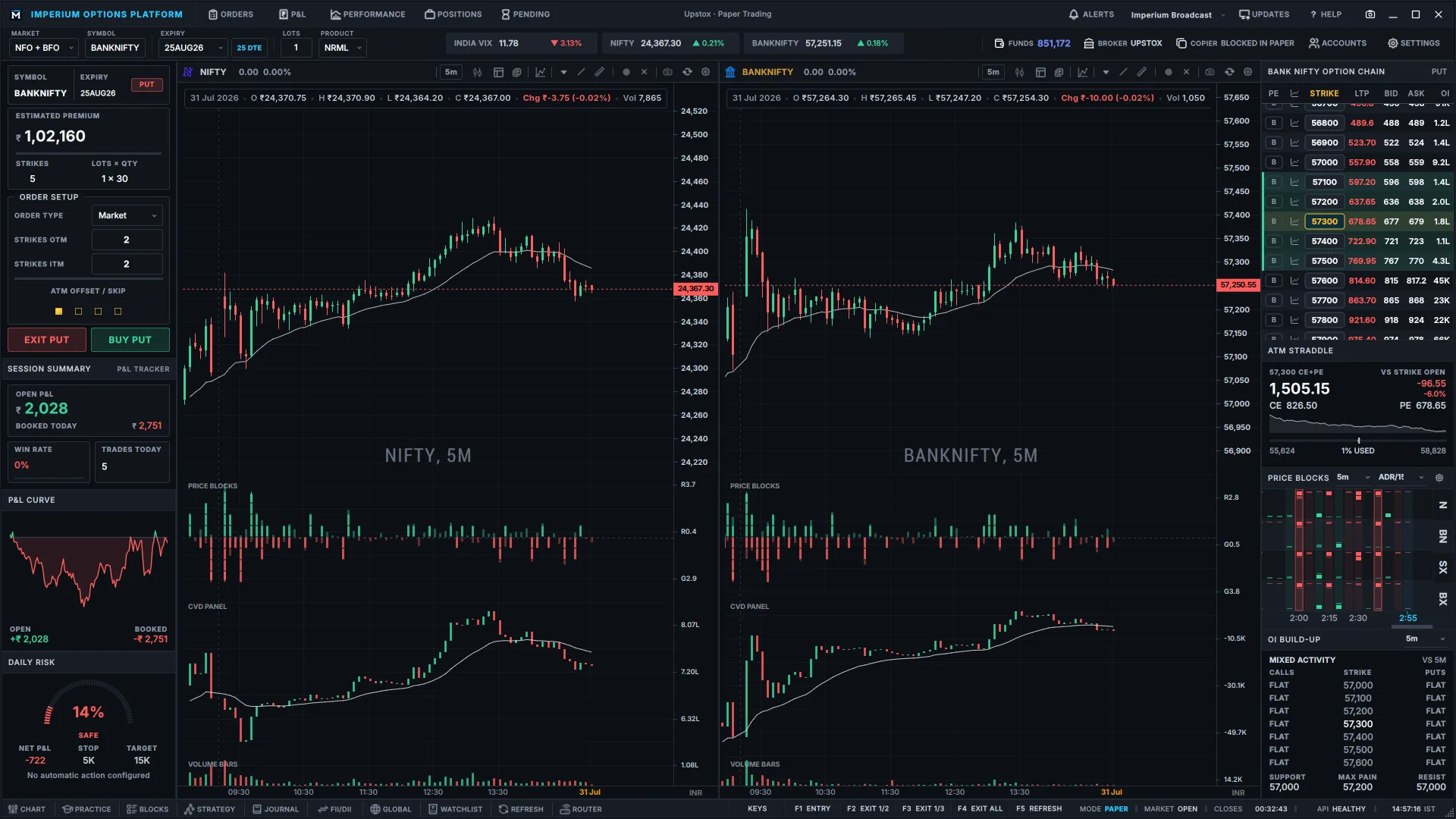
Orders, P&L and positions in the title bar
- Orders lists each closed trade with entry time, exit time, symbol, quantity, charges and net profit or loss. Prices come from your broker's order book, so they match your broker account; charges are estimated, and your contract note is the record.
- P&L and Performance record every session automatically and draw your equity curve over time.
- Positions shows open positions and lets you set a stop loss and target on each one. Levels round to the nearest valid tick, so a ₹1,000 stop may show as ₹1,001.
- Pending shows open limit orders.
- Alerts places a price line on the chart; drag it to the level and the platform alerts you when price crosses it.
- Themes, Updates and Help switch among light and dark themes, install new versions and reach support. The camera icon takes a screenshot; right-click it to resize the window to a set resolution.
Stop losses, targets and alerts are evaluated by the running application. Close Imperium Trader and they stop working; they are not stored as orders at your broker.
Group positions into strategies and protect them
Right-click the positions table to create a group, name it, for example Short Straddle, and drag positions into it. A group then works as one strategy.
- Protect strategy removes the group from hotkey and bulk exits. A protected strategy closes only when you square it off from its own menu, so a scalping keystroke cannot unwind a hedge.
- Analyse strategy opens the group in the strategy builder with its payoff curve, current P&L, maximum profit and maximum loss.
- Square off strategy closes every leg in the group at market or limit.
- Strategy stop loss and target close the whole group when its combined P&L reaches either value.
A portfolio stop loss sits above every strategy. Set a loss figure and a risk-reward ratio, and the platform derives the target and squares off the book when either is reached.
Markets, symbols and expiries in the header
- Market switches between NSE and BSE options and MCX commodity options such as crude oil, gold and silver.
- Symbol covers Nifty, Bank Nifty, Fin Nifty, Sensex and every F&O stock. Changing the symbol changes the option chain with it.
- Expiry shows days to expiry and reloads the chain when you switch.
- Lots sets the default size used across the order panels; Product switches between MIS and NRML.
- The ticker board shows your chosen symbols; right-click to add more on a wider screen. Funds and your broker name sit beside it.
- Accounts opens the trade copier. Add sub-accounts on any supported broker, sign in to each once a day with its API key and secret, and every order you place in the main account is copied to them.
Settings that shape the workspace
- Defaults: starting symbol, lot size, stop loss and risk-reward ratio.
- Interface: number of strikes in the chain, short symbols such as BANKNIFTY 48000 CE or full contract symbols, which widgets appear in each column, session metrics, and a single or dual main chart for laptops.
- Data: which exchanges to load, how many expiries — current, current plus one, current plus two or all — and whether to load all F&O stocks or indices only. All expiries is more than one lakh contracts; current plus one covers most intraday trading and loads faster.
Four ways to enter an options trade
Strike selection panel: many strikes in one order
Set the number of strikes in the money and out of the money; the at-the-money strike is always included. Four in the money and two out of the money selects seven strikes. The panel shows the estimated premium before you commit, and Buy call, Buy put, Exit call and Exit put act on the whole selection. ATM offset moves the anchor strike and skip leaves gaps between selected strikes.
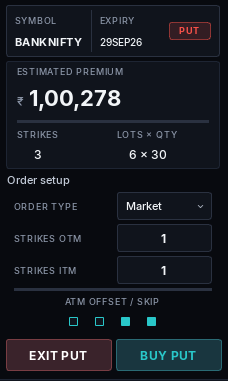
The panel buys options only. With it, B buys the current side, X exits all unprotected positions and T toggles between call and put, so a multi-strike, multi-lot scalp can be entered and closed in seconds. The multi-strike execution guide covers offset, skip and exits in detail.
Option chain: buy or sell a single strike
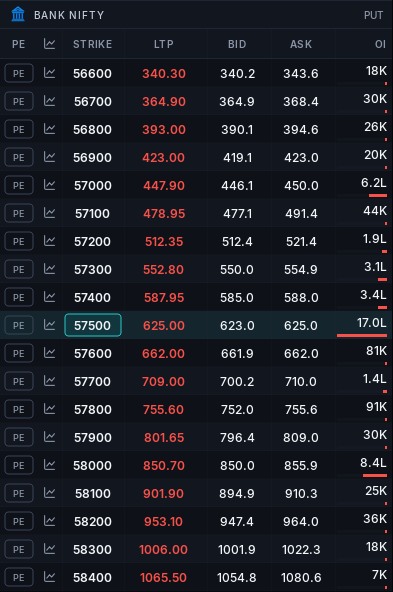
The option chain on the right follows the active chart. Select a strike to open a limit order ticket, adjust the price, and buy or sell. For sells, the ticket shows the approximate margin required. Double-click the chain or press T to toggle between calls and puts.
Power Scalper: one-click buys, sells and exits under the chart
Power Scalper is an order strip below the main chart, added after the walkthrough video was recorded. Calls are on the left, puts on the right, and the underlying price, expiry and lot size sit between them.
- One strike per side. Each side opens at the at-the-money strike, labelled ATM, ITM 1 or OTM 2 as you step through strikes. The strike stays fixed as the market moves, so its Exit button always acts on the contract you see. It returns to ATM when you change symbol or expiry, or press the ATM control.
- Everything you need to act. Each side shows LTP, bid and ask, your position in that strike and its P&L.
- Buy, Sell and Exit. Buy and Sell send market orders for the lots shown. Exit squares off that strike immediately, with no dialog. Exit all closes every position in the underlying after a confirmation.
- Arm, then send. By default the first click arms a button and the second sends it. If the strike or size changes while a button is armed, it disarms. Turn on one-click trading in Settings to send on the first click.
- Hotkeys. Shift+Up buys a call, Shift+Down buys a put, Shift+Left sells a call and Shift+Right sells a put.
Power Scalper orders pass the same checks as every other order: the trading lock, pre-trade risk checks and strategy protection. Show or hide the strip, and turn its hotkeys on or off, under Settings.
Strategy builder: multi-leg structures with a live payoff
The strategy builder loads templates including short straddle, short strangle, iron condor, iron butterfly and bull and bear spreads, or lets you pick legs manually. It draws the payoff graph and shows maximum profit, maximum loss and current P&L as you change lots. Execute sends buy legs before sell legs for the margin benefit, and the positions arrive grouped under the strategy name with its expiry.
Session review and daily risk on the left
- Session summary shows open and booked P&L, and can add used margin, available funds, win rate, trades today, average win and average loss.
- Daily risk sets a daily loss limit and daily target. Choose a warning only, or lock trading, which blocks new entries once a limit is reached while exits remain available.
- Tape pressure compares buy-side and sell-side delta from cumulative volume delta. The eye icon shows exactly how the reading is calculated.
The P&L curve shows how you held the trade
Booked profit tells you how a trade ended. The P&L curve records your running profit and loss tick by tick and marks every entry and exit, so you see the path: the peak, the deepest drawdown, how much open profit you gave back before exiting, and how long you held. Curves are stored for every day and every trade, and you can step back through past sessions to review them.
Option chain and market context on the right
- ATM straddle tracks the combined at-the-money call and put premium through the session, including each time the ATM strike rolls.
- Price Blocks marks price acceptance and rejection as coloured blocks across up to four symbols. Block size scales with each symbol's average daily range, so Nifty, Bank Nifty and Sensex are compared on equal terms. A solid vertical strip of the same colour across symbols is a rarer, stronger reading than scattered faded blocks.
- OI build-up classifies activity as long build-up, short build-up, short covering or long unwinding over a 5, 15 or 30 minute window.
Price Blocks uses price only. Treat it as a confirmation layer for your own setup, and backtest it on your instruments before relying on it.
Practice, research and routing in the footer
- Chart opens additional chart windows for any symbol, each with its own indicators, as many as your computer can run.
- Practice replays any CSV of one-minute data. Go long, go short and exit as the session plays back.
- Blocks opens the full Price Blocks view.
- Strategy opens the strategy builder.
- Journal records plans and lessons, attached to your trades from the Orders view.
- FII/DII shows institutional buying and selling; Global shows world markets before the Indian open; Watchlist tracks your symbols.
- Router sends broker orders through a static IP. Brokers accept API orders only from a registered IP; use one from your internet provider, or route through a free cloud virtual machine you operate. The static IP setup guide covers both.
Tick-data charts without a separate subscription
Charts are built into the platform and update on every tick from your broker feed. Each main chart offers layouts with or without indicator panels such as CVD, Price Blocks and volume bars, and you can save your own templates.
- More than 20 indicators, including EMA, VWAP, Supertrend, Bollinger Bands, RSI, CVD, CPR, pivots, volume profile and market profile.
- Drawing tools including lines, rectangles and Fibonacci retracements, plus chart screenshots.
- Settings for watermark, crosshair, displayed metrics and how many days of history to load.
The status bar shows the hotkey reference, live or paper mode, time to market open or close, broker API health and the current time.
Hotkey reference
| Key | Action |
|---|---|
| B · F1 | Buy the current strike selection |
| T | Toggle between call and put |
| X · F4 | Exit all unprotected positions |
| Shift+X · F2 | Exit half of each unprotected position |
| Ctrl+X · F3 | Exit a third of each unprotected position |
| Alt+C · Alt+P | Exit all call positions · all put positions |
| Alt+X, then 1–9 | Exit that many lots from every position |
| + · - | Increase or decrease lot size by one |
| Shift+Up · Shift+Down | Power Scalper: buy call · buy put |
| Shift+Left · Shift+Right | Power Scalper: sell call · sell put |
| Ctrl+K · / | Symbol search |
What Imperium Trader does not do
- It does not trade for you. Every opening order starts with your action. Stop losses, targets and the trade copier send follow-up orders only while the app is running.
- It is not a broker. Orders go to your broker through its official API. Broker names indicate compatibility only; Imperium Store is not affiliated with or endorsed by any broker.
- It does not store your broker credentials on a server. API keys stay on your computer. The security page documents every connection the platform makes.
- It does not promise profits. Options trading carries a substantial risk of loss.
